Time Tracking for Consultants: A Method for Solo Practices
Most advice on time tracking for consultants is written for firms, with managers, timesheet approvals, and a rollout plan. If you consult on your own, you need something smaller. You need a setup that bills every hour correctly and shows which contracts are worth keeping.
I'm a freelance marketing consultant. I run paid ads and SEO, and I've tracked my own consulting time since 2023. The advice below comes from that, and I built Grid to do that tracking better.
Why consultants track time when nobody asks them to
Hourly clients need an accurate invoice, so the case for tracking there is obvious. Retainers and fixed fees are where tracking earns its keep, because nobody checks your hours but you.
Tracking gives me three things:
- An honest answer to "was that a long month?" Some months feel heavy. The totals tell me whether they were, or whether it just felt that way.
- My effective hourly rate on each contract. That's what a client pays me divided by the hours I spend on them, and it changes over time.
- A view of the time that leaks. Small tasks slip through the cracks. Seeing them also shows me when I do have room for other things. It keeps me honest.
If you're new to the habit, our complete guide to freelance time tracking compares the main methods. The rest of this page is about how consultant time tracking works once you have several clients and different ways of being paid.
Set up your tracking around contracts
Most tracking advice tells you to log every task. For a solo consultant, that can create more work than it saves. Start from how you're paid.
One project per contract
I track at the contract level. One bucket covers the agency I work with on a retainer. Another covers the company I do SEO for. I don't break the agency's work down by its end clients, and I don't track individual tasks.
The reason is overlap. I'm often doing two or three things at once, like sitting on a call for one client while I work on something for another. Tracking each task separately would mean switching timers all day, and the extra detail wouldn't change a single invoice.
Add an activity only when the pay changes
Inside each project, add a new activity only when the pay structure changes. If a client starts paying by the hour for development time, development gets its own activity. Now its hours can be billed at their own rate.
Work that pays the same way stays rolled up. Optimizing an ad account and building new ads pay the same way, so they share one activity.
Keep your own business in a separate project
Work you do for a client goes in that client's project, including the emails, messages, and calls about their work. Your own business is different. Invoicing, proposals, prospecting, and learning are real work, but no client pays for them. Give them their own project, named something like "Business," with an activity for each.
This keeps the math clean. Every hour in a client project is client time, and every hour in Business is overhead. For more on where the line falls, see our guide to tracking billable hours accurately.
Log time while you work
Time you rebuild at the end of the week from your calendar and memory is mostly guesswork. Short tasks drop out, calls that ran over get logged at their scheduled length, and the totals come out low. Log each block when you start it.
The spreadsheet method, and where it breaks
One common method is a spreadsheet with one row per half hour, where you fill in the client as the day goes on. It's free and flexible, and it works if you fill it in every hour or two.
It breaks in three places. You forget to update it during a busy afternoon, so the gaps get filled from memory. Half-hour rows can't show a ten-minute task, so small work gets rounded into a neighbor or lost. And adding it all up at month's end takes formulas you have to maintain.
If you keep the spreadsheet, set a recurring reminder to fill it in, and total it weekly.
Catching a timer you forgot
The common failure with a timer is forgetting it. You leave it running over lunch, or never start it after a call. A tool that asks "still working on this?" every half hour catches that within minutes. Then you can fix the entry while you still remember what happened.
Three cases with no clean rule
Some situations don't have a right answer. I haven't settled on rules for these myself.
Overlapping work. Say you're on a call for one client while an upload runs for another. If you log the full time to both, each client's total goes up and your hours add up to more than the day had. Logging it only to the client who has your attention keeps totals honest, but the other client gets that time for free. Splitting it is fair but fiddly. Whatever you choose, write it down.
Tiny replies after hours. A three-minute Slack reply on a day off is easy to let slide. Logging every one gives you complete data. Letting them slip saves effort, but on a busy client those minutes can add up over a month. One middle path is to log them only when they lead to real work.
Switching every few minutes. When you jump between ad accounts, email, and calls, activities blur together. Tracking at the contract level helps here, because you only need to change the timer when the client changes.
A worked example: one consultant's month
This is a hypothetical solo consultant with two clients. Client A pays a flat retainer of $4,000 a month. Client B pays $120 an hour for strategy and $90 an hour for development, so those are two activities. Everything else goes into a Business project.
At the end of the month, the consultant exports a Project Summary for last month in decimal hours, which gives one total per project. Then they export last month again, filtered to one activity at a time, to split Client B and Business into the rows below:
| Project › activity | Hours | Billed |
|---|---|---|
| Client A › Retainer | 46 | $4,000 |
| Client B › Strategy | 18 | $2,160 |
| Client B › Development | 12 | $1,080 |
| Business › Admin and invoicing | 14 | $0 |
| Business › Sales | 6 | $0 |
| Business › Learning | 4 | $0 |
| Total | 100 | $7,240 |
Client B's invoice is the easy part: 18 hours at $120 plus 12 hours at $90, which comes to $3,240.
The retainer is the interesting line. At 46 hours, Client A works out to about $87 an hour. That's below both of Client B's rates. If those hours keep creeping up, the retainer gets worse every month without the price changing.
Across all 100 hours, including the 24 hours of Business work, the month earned $72.40 an hour, well below the $90 to $120 the consultant thinks of as their rate.
An end-of-week routine
A short review each week keeps the month-end export clean:
- Scan each day for gaps, like a morning with nothing logged or a timer that ran through lunch.
- Add missed blocks by hand, and trim any time that was overtracked.
- Move anything filed under the wrong client or into a client project by mistake.
- Export last week by project and compare each retainer against its usual pace.
- For hourly clients, copy the totals into your invoice or a client report.
If clients want to see the detail behind an invoice, our guide to client-ready time reports has formats you can reuse.
Read the numbers to fix pricing and scope
Once you have a few months of data, compare your effective rate across contracts. The gaps are usually bigger than you'd expect.
I used to build ready-made websites for a SaaS client, who resold them to its own users. My tracking showed it was my lowest-paying work. Everything else paid me almost twice as much per hour, and its payment cycle was slow. I dropped it and put that time into better-paying work.
A few other patterns are worth checking:
- Retainer creep. Hours on a flat retainer rising month after month means the rate is falling.
- Fixed fees that ran over. Compare the hours a project took with the hours you priced it at, and use the real number on the next quote.
- Overhead that grows. If the Business project keeps growing, your rate has to cover more unpaid hours.
To turn this into a new rate, see our guide on setting your freelance hourly rate from time data.
Choosing a time tracker for consultants
Firm-focused tools sell approvals, team dashboards, and budget alerts. A solo consultant needs less, and should check a few things:
- Logging speed. If starting a timer takes more than a click or two, you'll stop doing it.
- Exports. You want totals by project and date range in a format your invoicing tool or spreadsheet can take, like CSV.
- What it records. Some trackers capture app names, window titles, or the screen. When you work inside client files, that can matter for confidentiality.
- Platform and price. Pick something that runs on the computer you actually work on, at a price that makes sense for one person.
On a Mac, you can see which apps are allowed to record your screen in System Settings, under Privacy & Security, then Screen & System Audio Recording (Apple Support).
A firm tool is the better fit if you bill through an accounting integration, need retainer budget alerts, or have subcontractors logging time with you.
Time tracking for consultants with Grid
Grid is a time tracker for Mac that sits in the menu bar. It fits the contract-level setup above:
- Projects and activities. One project per contract, an activity for each way you're paid, and a Business project for overhead. Grid has no billable flag, so this naming is what separates billable time.
- One-click timers. Start and stop from the menu bar when the client changes.
- Check-ins. "Still working on X?" reminders come every 30 minutes by default, and you can pick 15, 45, or 60.
- Corrections. Add manual entries for missed blocks, and deductions for overtracked time.
- Exports. Export CSV, JSON, or TXT with presets like This Week, Last Week, and Last Month. Filter by project or activity, and choose decimal hours. A Project Summary export gives each project's total, and filtering by activity splits it further.
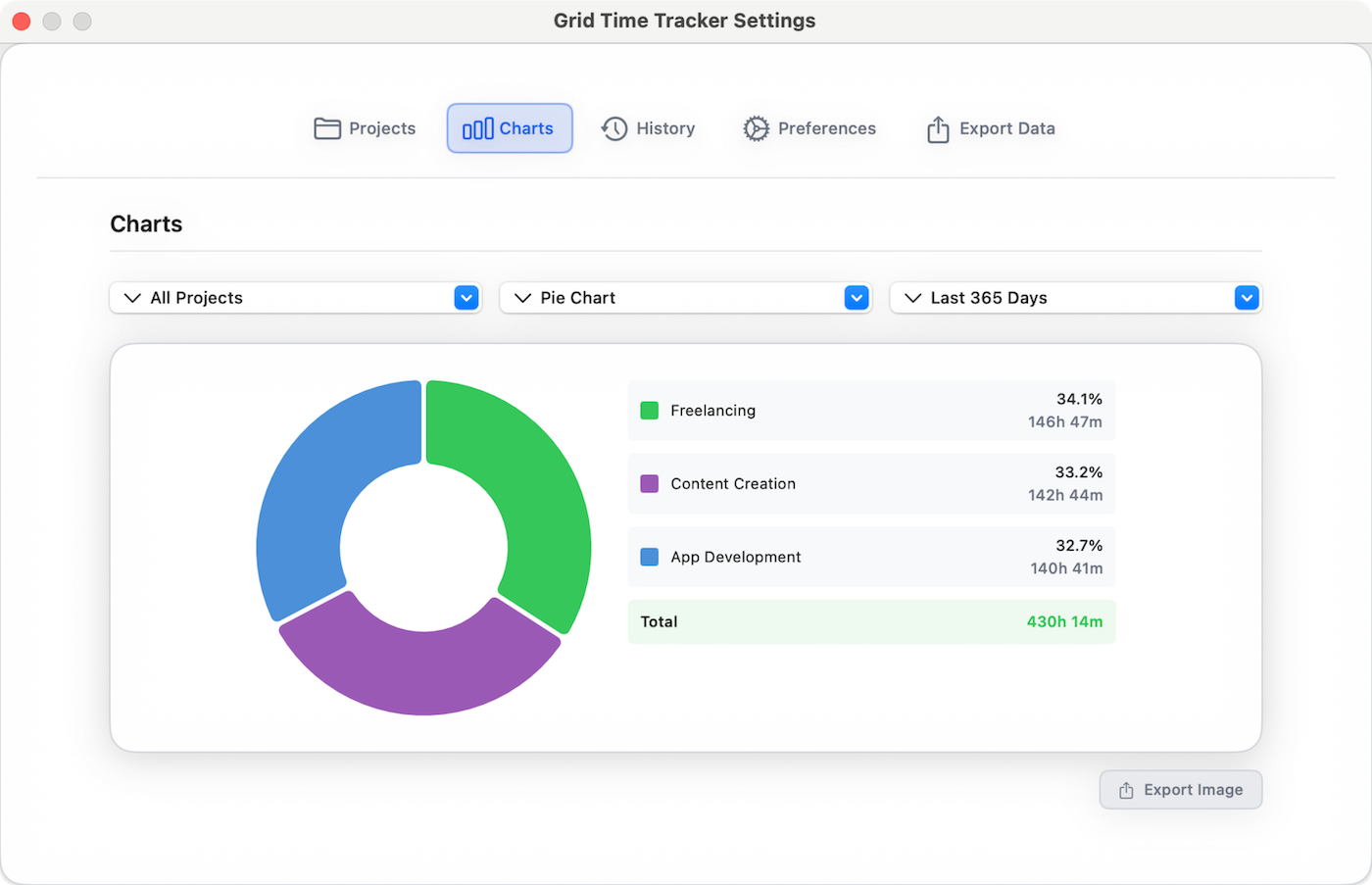
Grid only records time when you start a timer or add an entry, under the project and activity you pick. All tracking data stays local on your Mac. Entitlement verification (checking your subscription) makes a network call, but project names, activities, sessions, and tracked content are never uploaded. If you'd rather have software that records your whole day automatically, our comparison of Grid and Timing covers that choice. For a cloud tool with team features, see Grid vs Toggl.
Grid isn't for teams, and it doesn't create invoices or sync across devices. It runs on macOS 14 Sonoma or later. After a 7-day free trial, it costs $4.99 a month, $29.99 a year, or $59.99 for lifetime access. You can try it from the Mac App Store.
Ready to take control of your time?
Grid Time Tracker is a beautiful macOS menu bar app that helps you track work sessions, manage projects, and visualize your productivity with stunning analytics.