Time Audit: How to Do One in a Week (With Worksheet)
A time audit is a short, honest record of where your working hours go. You track everything you do for one normal week, then compare the totals with what you expected. For freelancers, the difference between those two numbers usually points straight at unbilled time, quotes that run long, and afternoons lost to small tasks.
This guide covers a one-week time audit built for solo work: what to track, how to record it, how to read the results, and what to change afterward. It includes a worked example and a worksheet you can download. A notebook is enough to do it, and a timer app makes the recording faster.
What is a time audit?
A time audit is a time diary with a review at the end. During the week you log each block of work as it happens: what you did, for which client, and for how long. At the end, you check those entries against your assumptions.
Researchers use the same basic tool. The U.S. Bureau of Labor Statistics builds its American Time Use Survey around a time-use diary: an interviewer walks each person through the day before the interview, starting at 4 a.m. and covering 24 hours, one activity at a time (BLS Handbook of Methods). Yours covers only working hours, and you fill it in as you go.
Why freelancers should run one
Time is what you sell, so an unexamined hour can hide revenue you didn't bill or a cost you never priced in. A one-week audit answers four practical questions:
- How much of my week is billable? Email, invoicing, sales calls, and setup all take real hours.
- Which client takes the most attention? Some clients send a steady stream of small requests that never feel worth logging.
- Are my quotes realistic? If a "two-hour" task keeps taking four, fixed-price work is costing you money.
- Where does my focus break? A day of short, scattered sessions feels busy and produces little.
If you already track billable time, the audit adds everything you'd normally leave unrecorded.
How to do a time audit in one week
One week captures your normal rhythm of client work, calls, and admin, and it's short enough to do consistently. Pick a typical week, without a vacation day or a big launch.
Step 1: Write down your guess
Before you start, write down how many hours you expect to spend on each kind of work this week. Be specific: "Client A, 14 hours. Email, 4 hours. Admin, 2 hours."
It takes five minutes, and it's the step people skip. Look at your totals without a written guess and hindsight kicks in: "Email? Yeah, that sounds about right." A guess on paper is what makes the surprise visible. If you already have a week of tracked data, write your guesses before you open the totals.
Step 2: Choose your categories
Six to ten categories is the useful range. With fewer, everything lands in "work." With more, you'll stop logging by Wednesday.
A starting set for a freelancer:
- One category per active client, or per project if a client has several
- Email and messages
- Non-client calls: networking and conversations with peers
- Admin: invoicing, bookkeeping, contracts
- Sales and marketing: proposals, pitches, portfolio updates
- Learning and tool setup
Calls with a client go under that client. Mark each category billable or non-billable before you start, because that label is what gives you a billable ratio at the end. If a category is only sometimes billable, split it in two.
For a personal or whole-day audit, swap the client categories for the parts of your day you want to see, like commuting, chores, or exercise.
Step 3: Record each block as it happens
Paper, a spreadsheet, and a timer app all work. The timing matters more than the tool: log each block as you start and stop it. Rebuilding a day from memory tends to round off short tasks and often drops interruptions, and those are the exact things an audit is meant to find. Here's more on why reconstructing time at the end of the day undercounts your work.
Start a new entry every time you switch categories, and add a short note when something interrupts you, like "client call ran over." Work the way you normally would. If you forget a block, add it as soon as you notice and mark it as estimated.
A timer that's one click away, in your menu bar or on your desk, removes most of the friction. For the first couple of days, a reminder to start it helps too. If you're new to tracking, our complete guide to freelance time tracking compares the main methods and how to build the habit.
Step 4: Total it up
At the end of the week, add up the hours in each category and put them next to your guesses. Then work out three numbers: total hours, billable hours, and your billable ratio, which is billable hours divided by total hours.
A time audit worksheet
Download the daily log and the weekly summary as CSV files. They open in Excel and Numbers, and in Google Sheets through File > Import. The weekly summary already has formulas for the differences, the totals, and your billable ratio.
Daily log
| Time | Category | Task and notes |
|---|---|---|
| 9:00-10:30 | Client A | Homepage layout |
| 10:30-11:05 | Email and messages | Replies, including 3 small revision requests |
| 11:05-11:40 | Client B | Logo edits, cut short by a call |
| 11:40-12:10 | Client B | Project call, ran 10 minutes over |
Use one row per block of work, and keep the notes short. The downloadable log also has columns for start and end times, hours (calculated for you), and whether each block is billable.
Weekly summary: a worked example
Here's a hypothetical week for a freelance designer with two clients, filled in on Friday:
| Category | Guess (h) | Actual (h) | Billable? |
|---|---|---|---|
| Client A | 14 | 13.5 | Yes |
| Client B | 8 | 9 | Yes |
| Email and messages | 4 | 7.5 | No |
| Non-client calls | 1 | 2 | No |
| Admin | 2 | 3.5 | No |
| Sales and marketing | 3 | 3 | No |
| Learning and tool setup | 1 | 1.5 | No |
| Total | 33 | 40 |
Billable hours came in almost exactly as guessed: 22.5 against 22. The surprise is the seven hours nobody planned for, and nearly all of them went to email, admin, and calls. That pulls the billable ratio from an assumed 67% down to 56%. At $75 an hour, those 40 hours earned about $42 an hour.
How to read your results
Three checks turn the totals into decisions.
Billable ratio
Your billable ratio is the share of your working hours you can invoice. The right number depends on how much selling, admin, and learning your business needs, so there's no universal target. What you need to know is whether your rate covers the hours you can't bill. Our guide to setting your freelance hourly rate shows how to build those hours into your pricing.
When one client's work keeps landing in non-billable categories, such as revisions logged as "email" or calls that never reach the invoice, tighten how you track billable hours for that client.
Guess versus actual
Compare the two columns row by row. The biggest gaps are your blind spots: email that ran well over, admin that grew because it happens in small pieces, or a client who takes more time than their invoice suggests.
Fragmentation
Look at the daily logs as well as the totals. How long were your uninterrupted blocks? A day with fifteen short entries feels productive and may hold very little deep work.
Count the tiny entries too: five-minute replies, quick file sends, "small" revision requests. Over a week they add up to real hours, and they're easy to leave off an invoice.
Turn the results into changes
Pick two or three of these:
- Adjust your pricing if your billable ratio is lower than your rate assumes.
- Bill for revisions. If revision requests are eating hours, write them into your contract terms or quote them separately.
- Batch the small stuff. Check email at set times and group admin into one block.
- Protect focus blocks. If your best work happens in the morning, keep calls out of it.
- Fix your estimates. Use the actual hours for each kind of task as the starting point for your next quote.
How often should you run one?
Run a full audit when something feels off: you're busy but income is flat, a client feels like a drain, or quotes keep running over. Once a quarter is a reasonable rhythm, and so is after a big change like a new client or a rate increase.
If you already track every day, an audit takes minutes: export a week and compare it with your guesses. Done every Friday, that becomes a weekly review.
Running your audit with Grid
Grid is a Mac menu-bar time tracker, and its structure maps onto the worksheet:
- Projects. One project per client for billable work, with activities like Design, Revisions, and Client calls, plus a Non-billable project with activities for email, admin, and sales.
- One-click logging. Start and stop timers from the menu bar as you switch tasks.
- Check-ins. "Still working on X?" reminders every 30 minutes by default (or 15, 45, or 60) catch a forgotten timer early.
- Corrections. Manual entries for missed blocks, and deductions for overtracked time like lunch.
- Worksheet totals. Export a Project Summary CSV with the This Week or Last Week preset, in decimal hours or time format. Client projects give your billable hours. Filter the export to one activity to total a single category.
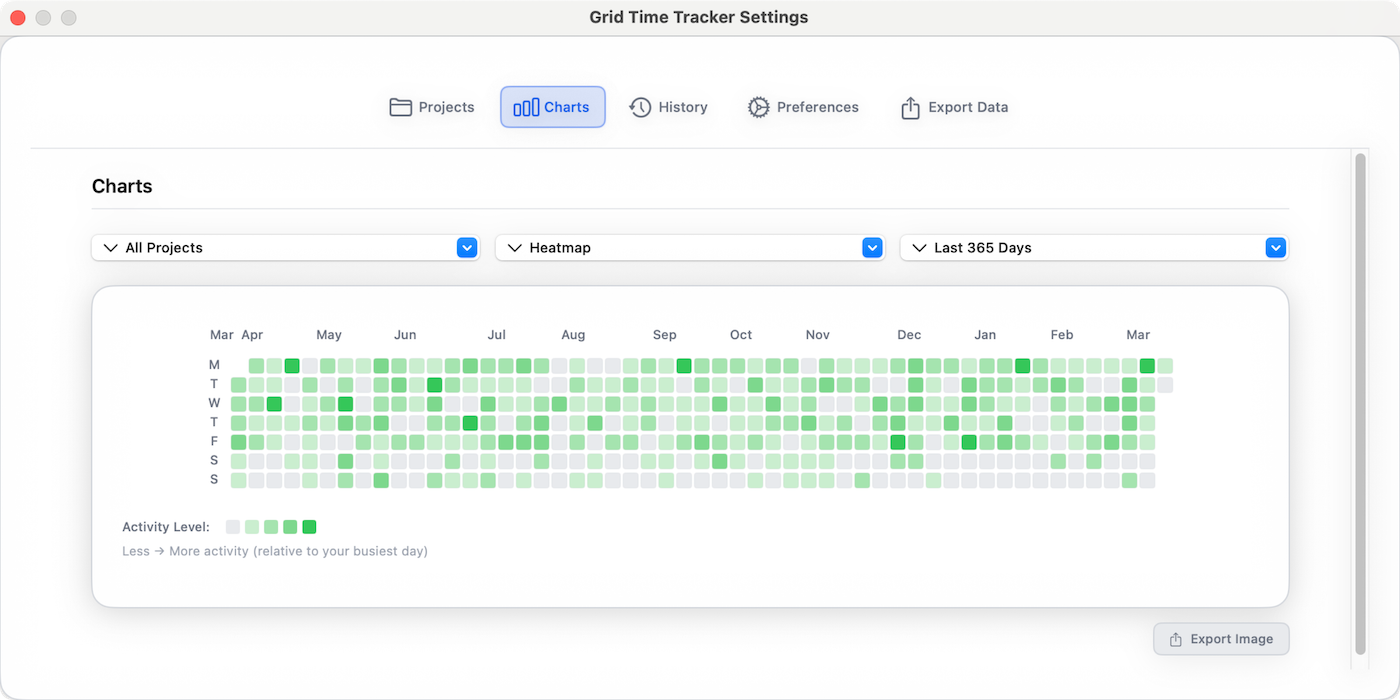
The heatmap gives a quick visual check of which days were heavy or light.
Grid only records time when you start a timer or add an entry, and all of your tracking data stays on your Mac. If you'd prefer software that captures your whole day automatically, an automatic tracker is the better fit, and our comparison of Grid and Timing covers that choice. Grid runs on Macs with macOS 14 or later, and it doesn't create invoices. You can try it free for 7 days from the Mac App Store.
Ready to take control of your time?
Grid Time Tracker is a beautiful macOS menu bar app that helps you track work sessions, manage projects, and visualize your productivity with stunning analytics.